How to Mass Text on WhatsApp and Google Voice Privately
BCC Text is the best way to send group messages on WhatsApp and Google Voice without creating a group chat. The app uses iOS Shortcuts to route messages through each person's preferred platform. That includes Messages, WhatsApp , or Google Voice all while keeping every conversation private and one-on-one.
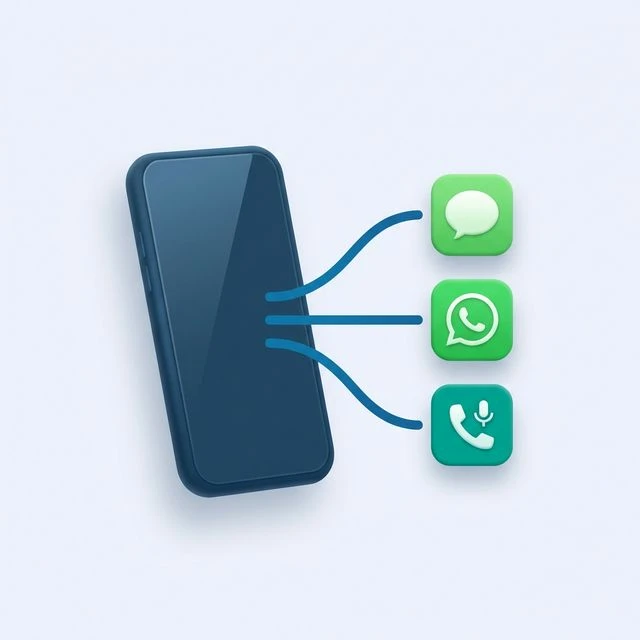
Most people think of BCC Text as a way to send mass texts through the iPhone Messages app, but it also works with WhatsApp and Google Voice.
This flexibility means you can reach people on the platform they prefer, all from one app. You can even mix platforms in the same send. Some contacts get an iMessage, others get a WhatsApp message, and others receive a Google Voice text.
This guide will show you how to set up and use each platform.
Who uses BCC Text for multi-platform messaging
Coaches send practice updates to parents and players across WhatsApp and Messages. Teachers coordinate with families on their preferred platforms. Small business owners send appointment reminders from their Google Voice number. Event hostsEvent hosts reach attendees internationally via WhatsApp and locally via standard text. Real estate agentsshare listing updates across messaging platforms. Faith communities coordinate members on WhatsApp (popular in many congregations) and Messages. Clubs and teams manage communication without creating chaotic group threads.
Many others use BCC Text whenever they need to reach groups on their preferred messaging platforms without group chats.
How BCC Text works with different platforms
BCC Text uses iOS Shortcuts to send messages through the Messages app, WhatsApp, and Google Voice. When you compose a message in BCC Text, you can assign each contact to their preferred platform.
The app generates a Shortcut that:
- Opens the correct app for each contact
- Automatically populates the message
- Sends it as a private, one-on-one conversation
Recipients see a normal message from you in their preferred app. They'll never know it was part of a mass send.

Using BCC Text with WhatsApp
Why use WhatsApp?
WhatsApp is the messaging app of choice in many countries and communities. Using BCC Text with WhatsApp:
- Reaches contacts who prefer WhatsApp over SMS
- Works internationally without SMS fees
- Supports rich media like photos and videos
- Maintains end-to-end encryption
How to set it up
Step 1
Install WhatsApp
Make sure you have WhatsApp installed and set up with your phone number.
Step 2
Add contacts to BCC Text
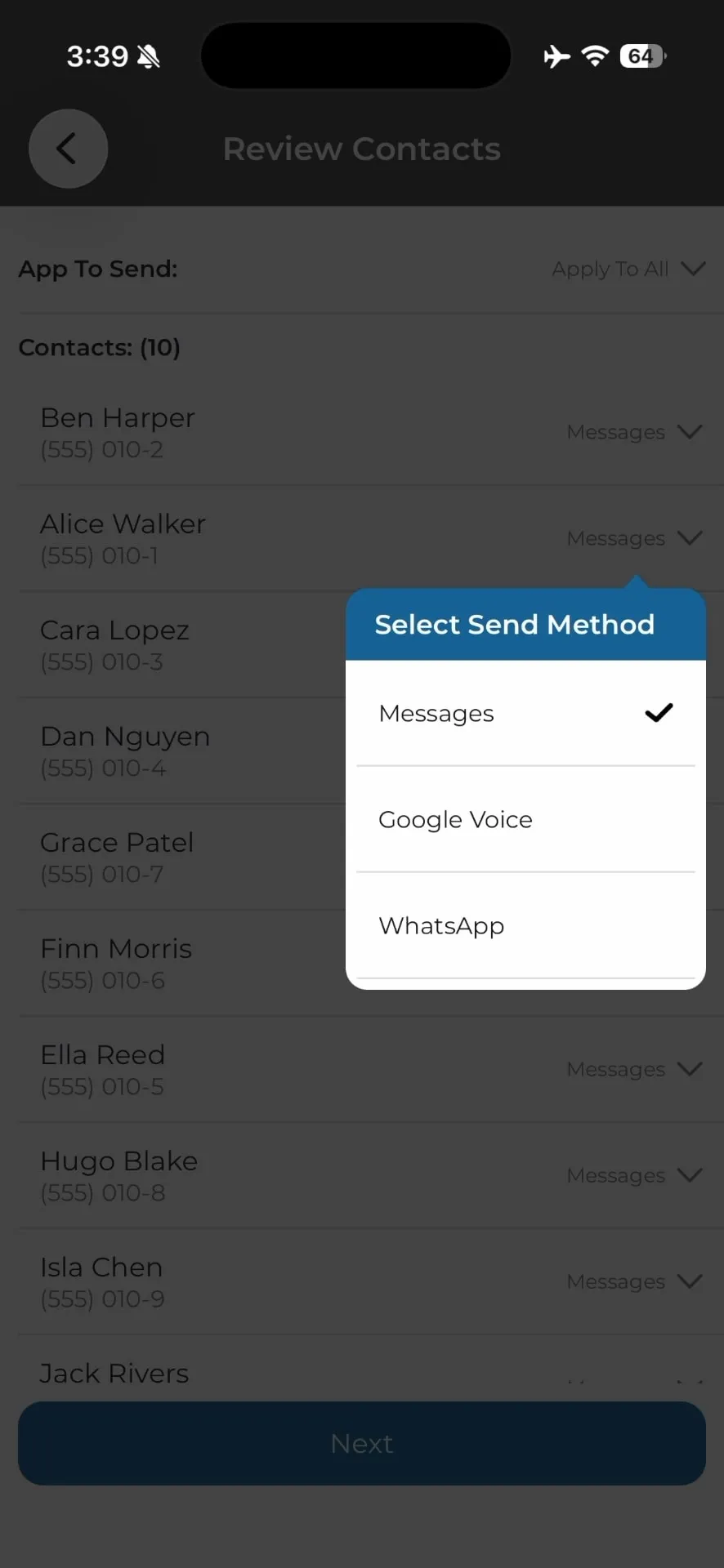
When adding or editing a contact in BCC Text, you'll see an option to set their preferred messaging app. Select WhatsApp for contacts you want to reach on that platform.
Step 3
Compose and send your message
Compose your message in BCC Text like you normally would. When you tap send, the app will generate a Shortcut that routes WhatsApp contacts through WhatsApp and other contacts through their assigned apps.
Step 4
Run the Shortcut
When the Shortcut runs, it will automatically open WhatsApp for each WhatsApp contact, populate the message, and send it. You may need to keep your phone unlocked and avoid switching apps while the Shortcut completes.
Tips for WhatsApp sends
- Save contacts with country codes: WhatsApp requires phone numbers in international format (e.g., +1 for US numbers).
- Keep the app installed: WhatsApp must be installed and logged in for the Shortcut to work.
- Use Wi-Fi for large sends: WhatsApp works over Wi-Fi or cellular, but Wi-Fi is more reliable for longer sends.
Using BCC Text with Google Voice
Why use Google Voice?
Google Voice is popular among people who want a separate number for business or privacy. Benefits include:
- Send messages from a dedicated business number instead of your personal phone
- Keep business and personal conversations separate
- Access messages from multiple devices
- Use a US number even when traveling internationally
How to set it up
Step 1
Install Google Voice
Download the Google Voice app from the App Store and sign in with your Google account.
Step 2
Add contacts to BCC Text
When adding or editing a contact in BCC Text, set their preferred messaging app to Google Voice.
Step 3
Compose and send your message
Write your message in BCC Text and tap send. The app will create a Shortcut that routes Google Voice contacts through the Google Voice app.
Step 4
Run the Shortcut
The Shortcut will open Google Voice for each Google Voice contact, populate the message, and send it. Keep your phone unlocked and avoid switching apps during the send.
Tips for Google Voice sends
- Stay logged in: Make sure you're logged into Google Voice before starting the send.
- Check your number: Confirm your Google Voice number is active and able to send messages.
- Monitor for errors: If a message fails, it may show an error in Google Voice. You can manually retry those contacts.
Mixing platforms in one send
One of the most powerful features of BCC Text is the ability to send to multiple platforms in a single batch. For example, you could send the same message to:
- 20 contacts via iMessage
- 15 contacts via WhatsApp
- 10 contacts via Google Voice
BCC Text handles the routing automatically. Each person receives a private message in their preferred app.
How to set it up
Step 1
Assign each contact to their preferred app
When you add contacts to a group, make sure each one is assigned to the correct messaging app (Messages, WhatsApp, or Google Voice).
Step 2
Compose your message
Write one message that works for all platforms. BCC Text will send the same text to everyone.
Step 3
Review the preview
Before sending, BCC Text shows you a preview of which contacts will receive the message on which platform. Double-check that the routing looks correct.
Step 4
Send and wait
The Shortcut will cycle through all contacts, switching between apps as needed. This can take a few minutes depending on the group size.
When to route to each platform
Here are some guidelines for choosing which app to use for each contact:
Use Messages (iMessage/SMS) when:
- The contact is in the US and prefers traditional texting
- You want messages to appear from your personal phone number
- The contact doesn't use WhatsApp or Google Voice
Use WhatsApp when:
- The contact is international or prefers WhatsApp
- You want to avoid SMS fees
- The contact values end-to-end encryption
Use Google Voice when:
- You want messages to come from a business or secondary number
- You need to separate business and personal conversations
- You want message history synced across devices
Troubleshooting common issues
WhatsApp: Contact not found
Make sure the contact is saved in your phone with their full international phone number, including the country code (e.g., +1 for US numbers). WhatsApp requires this format.
Google Voice: Message fails to send
Confirm that you're logged into Google Voice and that your Google Voice number is active and able to send messages. Check the Google Voice app for any error messages.
Shortcut stops mid-send
Keep your phone unlocked and avoid switching apps while the Shortcut is running. If the Shortcut is interrupted, you may need to restart the send or manually message the remaining contacts.
Wrong app opens for a contact
Double-check the contact's assigned messaging app in BCC Text. You can edit this in the contact details or group settings.
Get started with multi-platform messaging
Using BCC Text with WhatsApp and Google Voice gives you the flexibility to reach people on the platforms they prefer, all from one app.
Whether you're coordinating an international event, managing a business with a Google Voice number, or just want to mix messaging platforms in one send, BCC Text makes it simple.